
Add your Kite card to Apple Pay
This guide walks you through adding your Kite card to Apple Pay, common issues you might run into, and how to resolve them.
How do I add my Kite card to Apple Pay?
1. Open the Kite app and go to your Card tab.
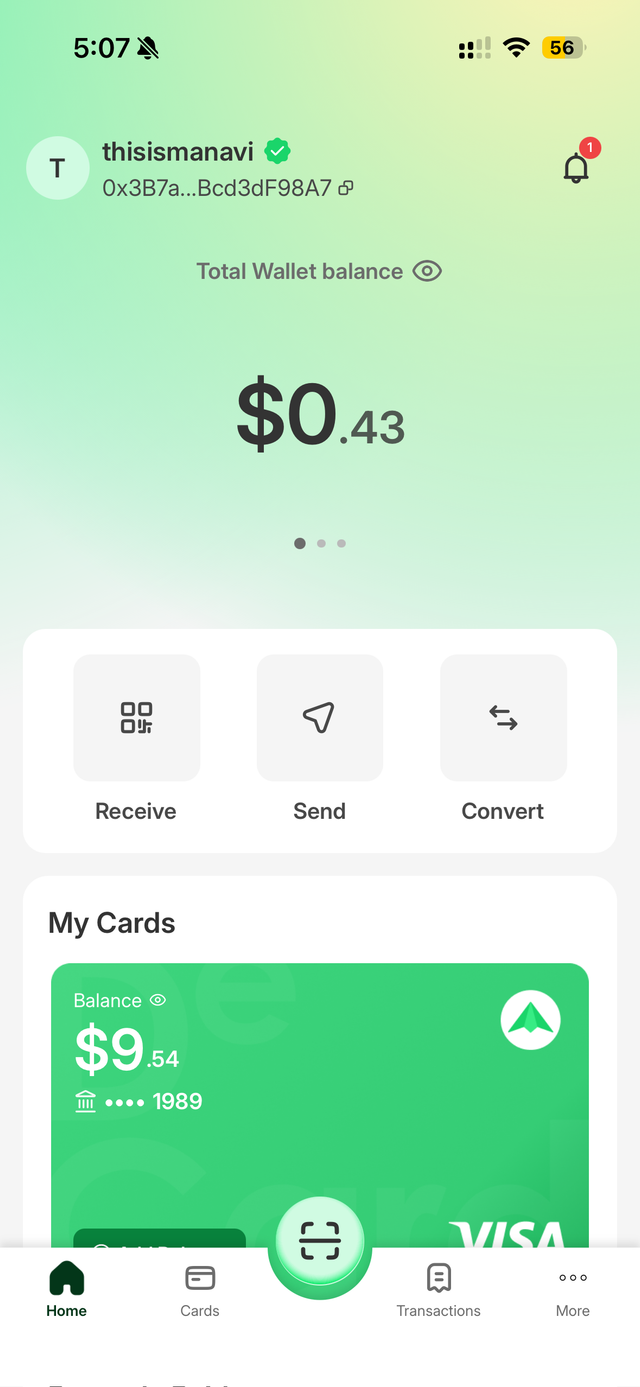
2. Tap Details to reveal your full card number, expiry date, and CVV.
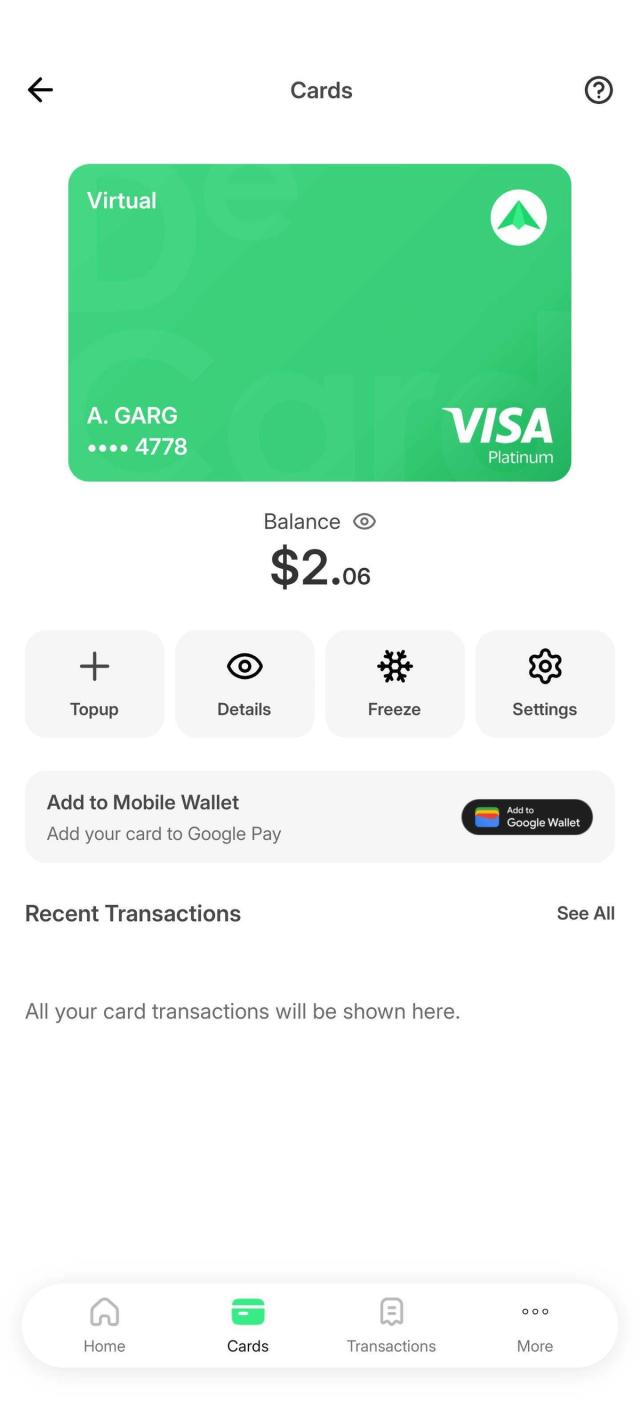
3. Tap Send code to receive an OTP on your registered mobile number.

4. Copy or note down the card details.
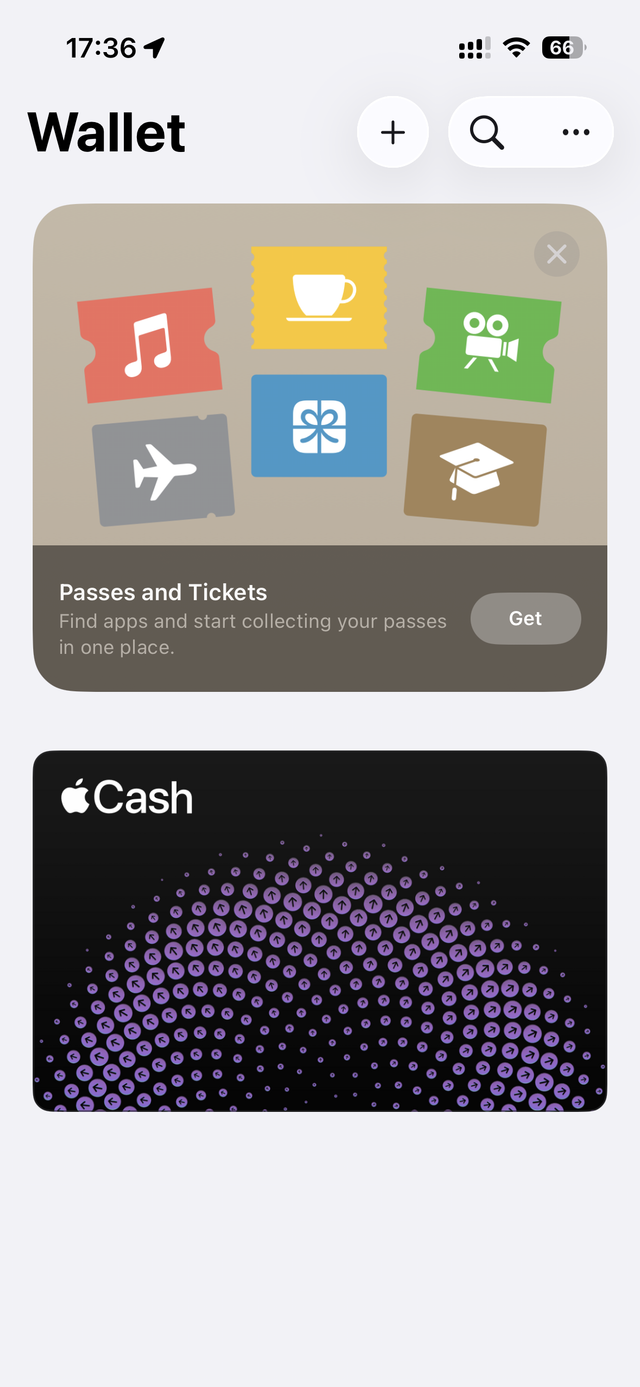
5. Open the Wallet app on your iPhone.
6. Tap the Add icon in the top right corner.
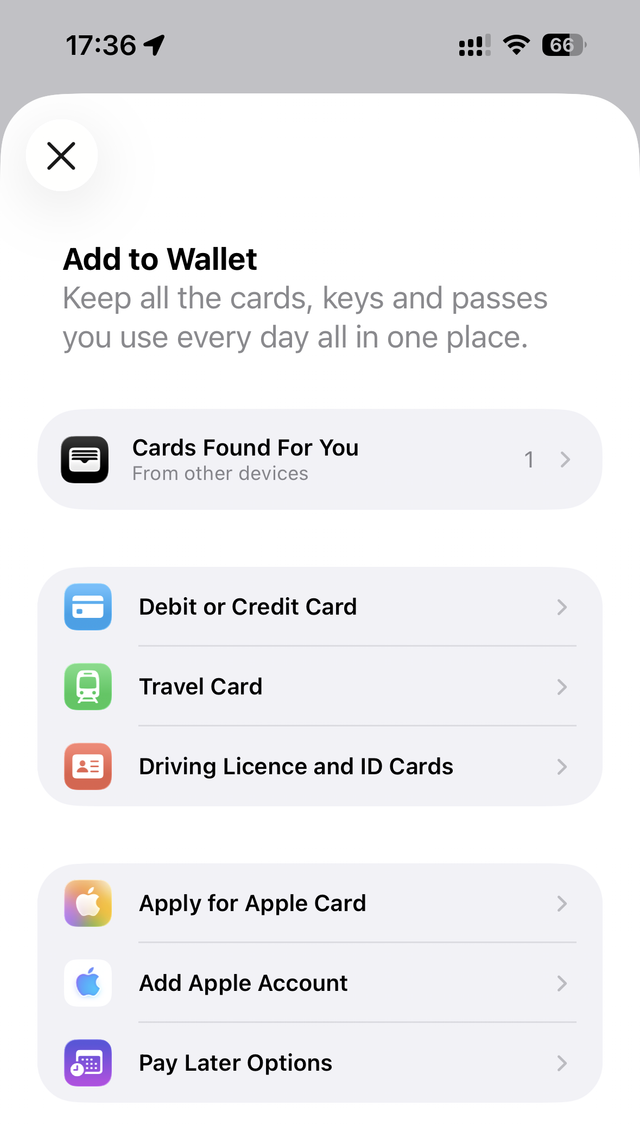
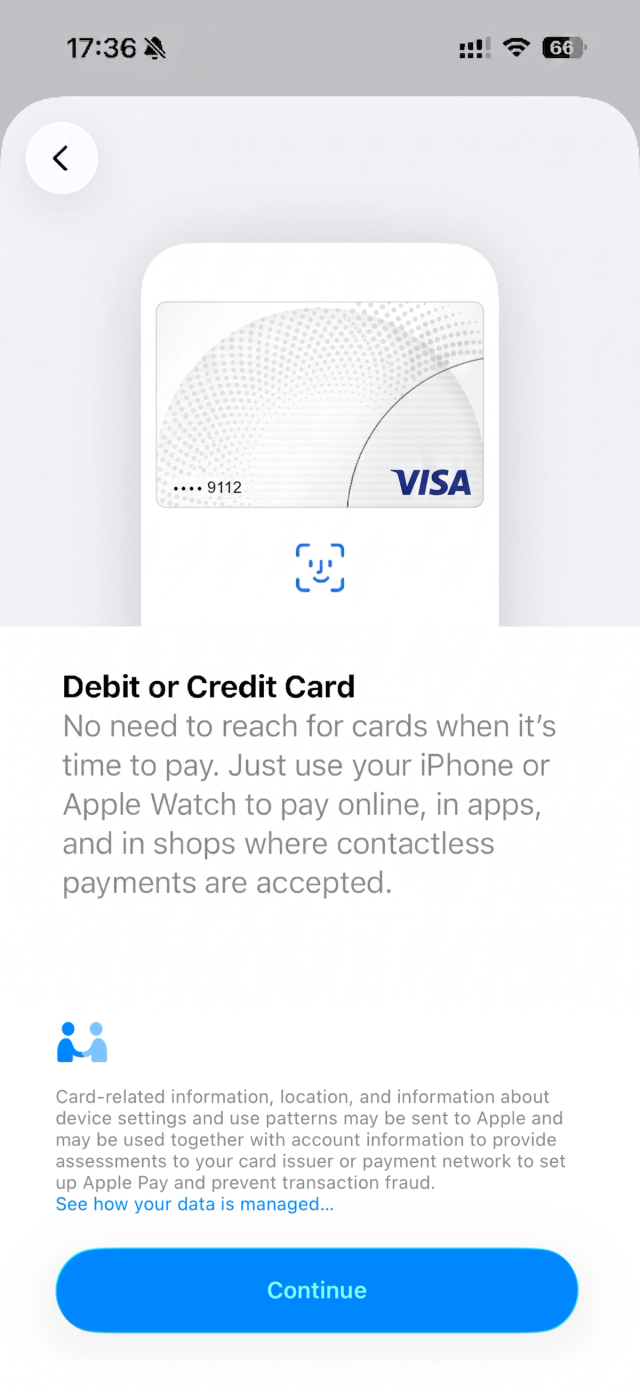
7. Select Debit or Credit Card from the list.
8. Tap Continue to proceed with adding card details.
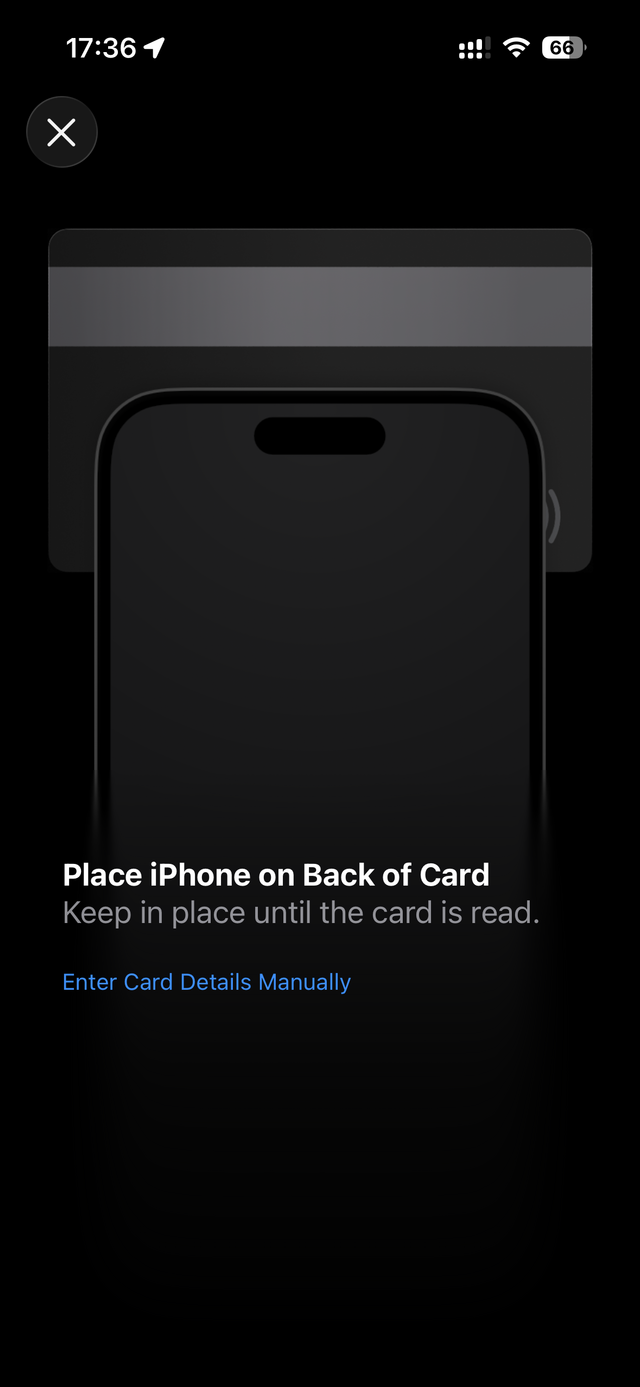
9. For your virtual card, tap "Enter Card Details Manually".
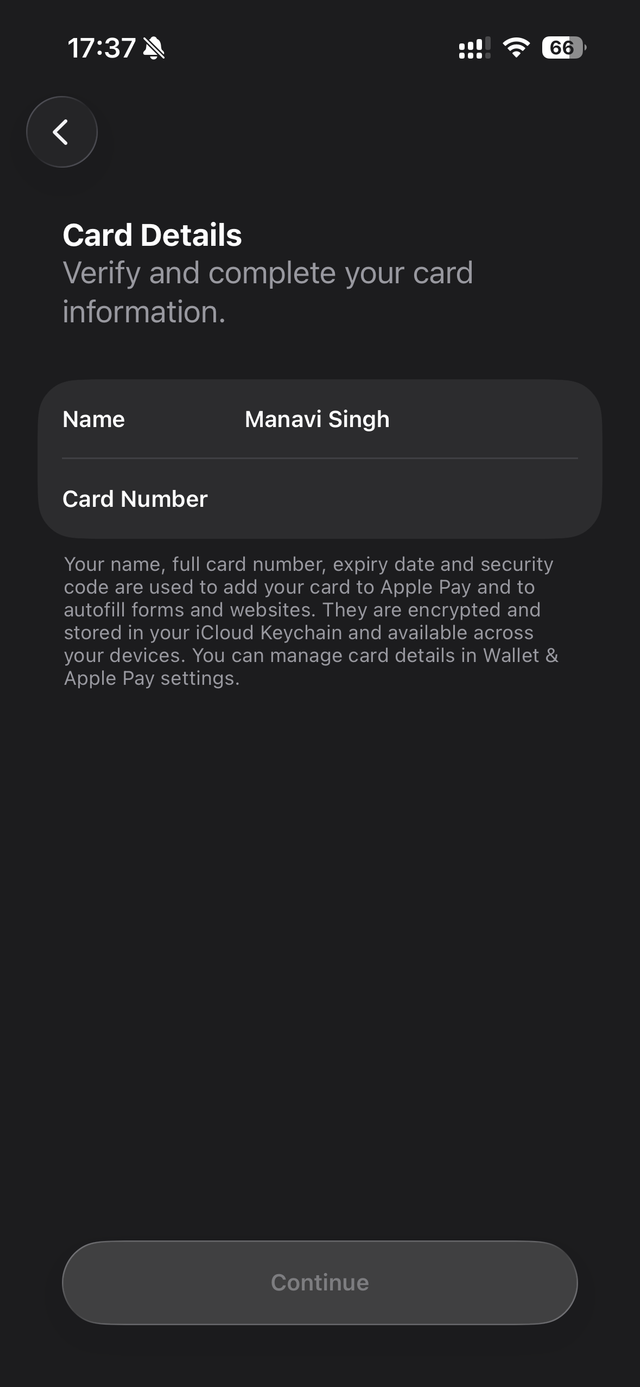
10. Enter your name and card number, then tap Continue. Make sure these match your Kite account exactly.
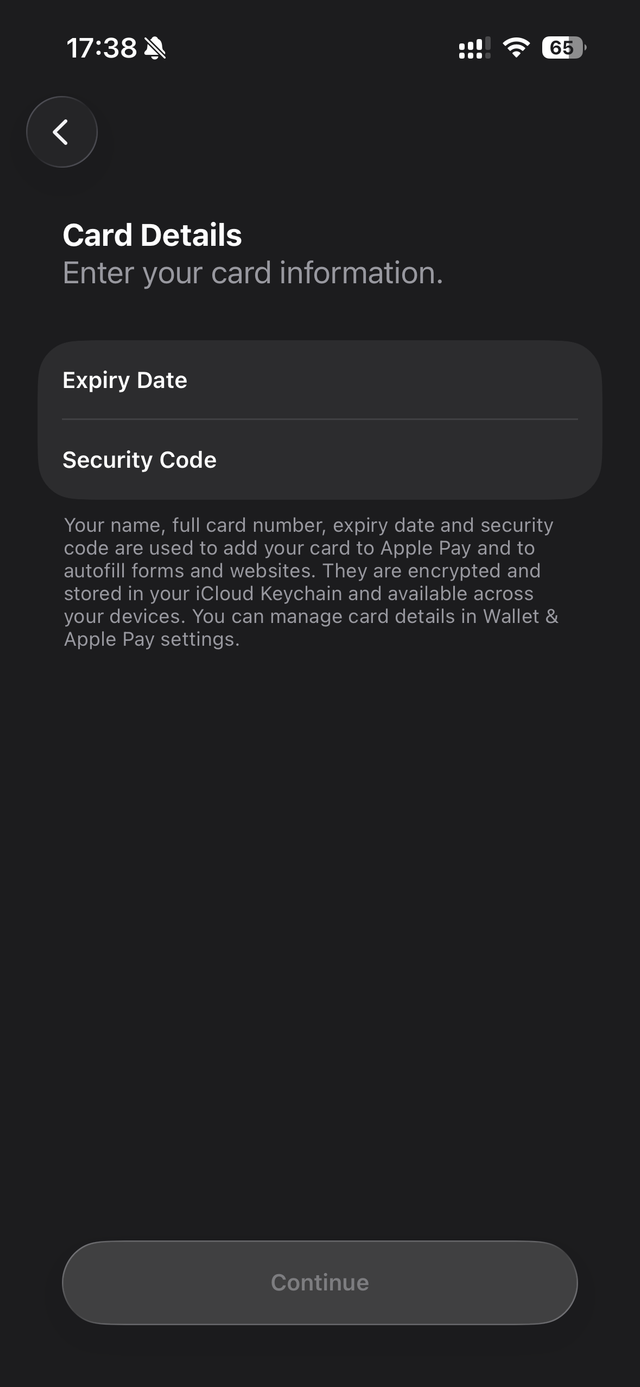
11. Fill in the Expiry Date and Security Code, then tap Continue.
12. Read the terms and conditions and tap Agree.
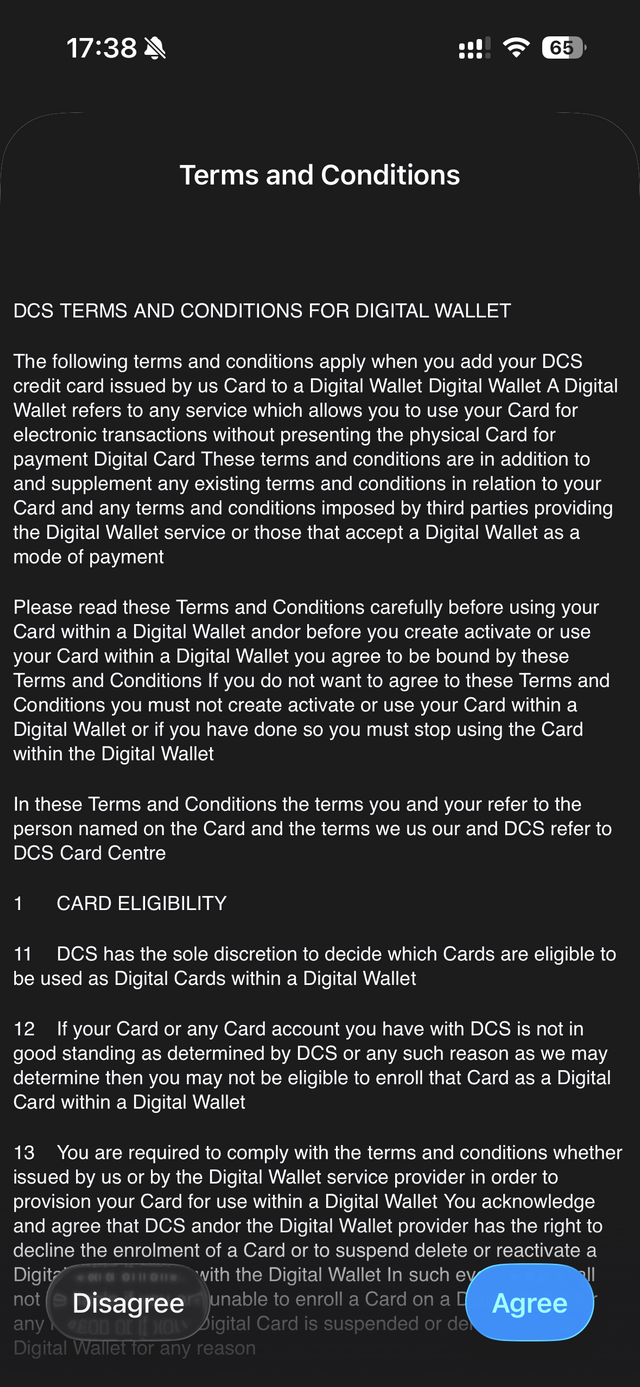
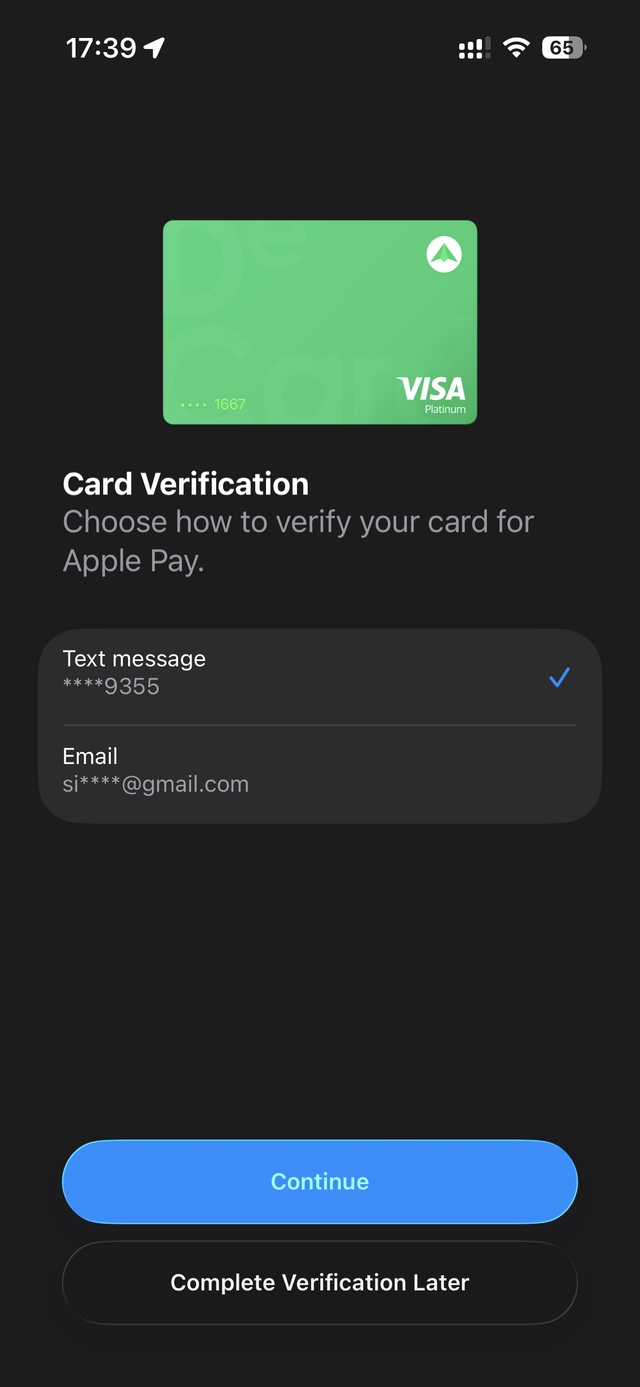
13. Complete any verification steps prompted on screen (SMS code, email confirmation, or in-app approval).
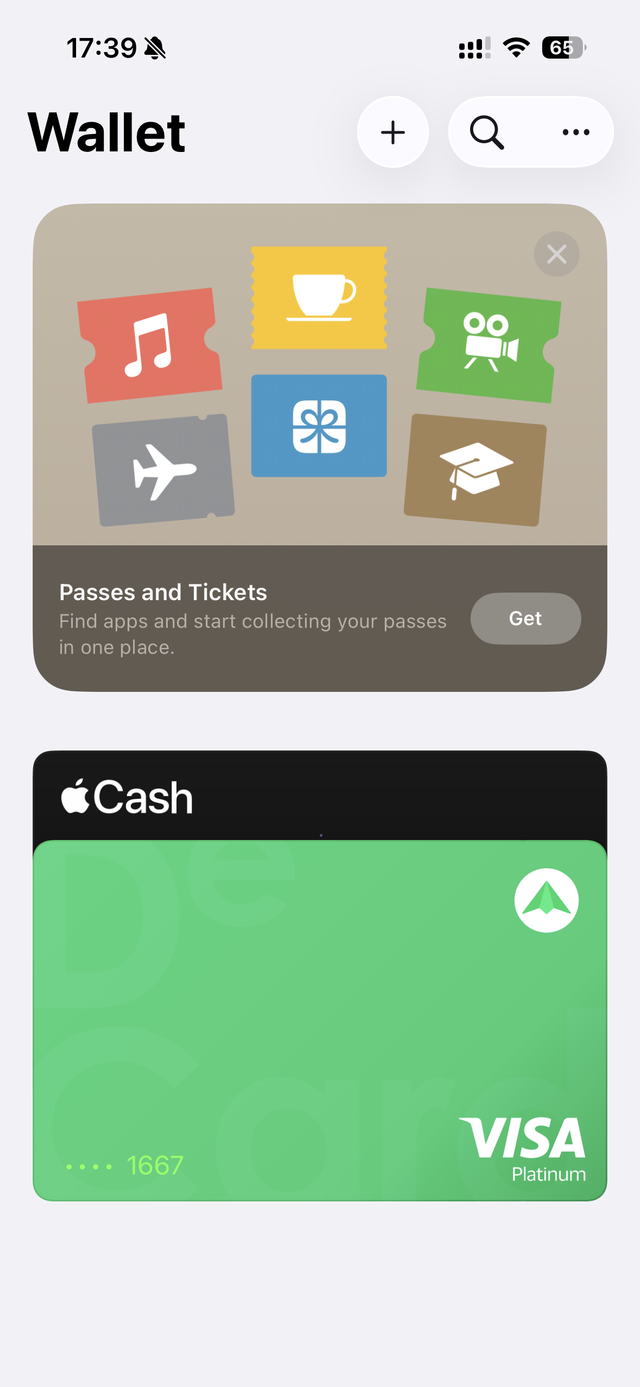
Your card is ready to use with Apple Pay.
Why can't I add my Kite card to Apple Pay?
A few things can prevent your card from being added:
- Region restrictions: Apple Pay must be available in your country or region. Your Kite card may work globally, but Apple Pay availability varies by market.
- Card status: A card that is expired, frozen, or has not yet been activated cannot be added to Apple Pay. Contact customer support to resolve this.
- Incorrect card details: Even a single wrong digit in your card number, expiry date, or CVV will cause the setup to fail.
- Incomplete verification: If you skip or do not complete the required verification step, the card will not be added.
- Device or app issues: Make sure your iPhone, iPad, Apple Watch, or Mac supports Apple Pay and is updated to the latest software version.
How do I fix issues adding my Kite card to Apple Pay?
- Check your region and account settings. Ensure Apple Pay is available in your region.
- Update your apps. Make sure your device is compatible with Apple Pay and updated to the latest software version.
- Double-check your card details. Enter the card number, expiry date, and CVV exactly as shown in the Kite app.
- Check your internet connection. Use a stable connection, and ensure you can receive OTPs on your registered email and phone number.
What should I do if I still can't add my Kite card?
- Contact Kite Support at care@kiteapp.xyz.
- Contact Apple Support directly if there are no restrictions on your Kite card but Apple Pay is still showing errors.
Frequently asked questions
What should I do if I get a "card not supported" error?
Start by confirming that Apple Pay is available in your region. If the error persists, review the common causes and troubleshooting steps above.
Can I scan my Kite card instead of typing the details?
Not at this moment. Virtual cards must be entered manually. Always verify that the entered details match what is shown in the Kite app.
Why is my Kite card being declined after adding it to Apple Pay?
Your card may be declined due to insufficient funds, a frozen card, or a security block triggered by unusual activity. Open the Kite app and check your card status and recent transactions before trying again. If the issue persists, contact Kite Support.
Can I add my Kite card to more than one Apple Pay account?
Yes. You can add your Kite card to more than one Apple Pay, as long as each device supports Apple Pay.
Does adding my Kite card to Apple Pay cost anything?
Adding your card to Apple Pay is free. Standard transaction fees and currency conversion charges still apply when you make purchases.
How long does it take for my Kite card to become active in Apple Pay?
Activation is usually instant once verification is complete. In rare cases, it may take a few minutes due to additional security checks or network delays.
Can I use Apple Pay with my Kite card on all my Apple devices?
Yes. You can use Apple Pay with Kite on any supported Apple device running the latest software, including iPhone, iPad, Apple Watch, and Mac.